
MovieBox Pro Android
MovieBox Pro for Android is commonly distributed as an APK, an application package that can be installed on an Android phone or tablet. Before using the MovieBox Pro download page, check the file’s source, version information and device requirements. A familiar app name or logo alone does not establish that a download is authentic.
This guide explains Android installation, account activation, updates and common problems. For other platforms, see our Windows PC guide and iOS guide. Android APK files cannot be installed directly on iPhones or iPads.
MovieBox Pro Android Version and Compatibility
Verification reviewed: 8 October 2026. We could not confirm the current Android release number or minimum supported Android version from an accessible developer release page. The earlier claim that “version 5” is the latest release has therefore been removed.
Before installing, compare the release information supplied with the APK against the version already on your device. You can usually find the installed version in Settings > Apps > MovieBox Pro, sometimes at the bottom of the App info page, or in the app’s About section if available.
MovieBox Pro on Android 13, Android 14 and Newer Devices
Compatibility depends on the particular APK and your device. An Android version number alone does not guarantee that an app will install, open or play video successfully. We have not independently tested this APK on Android 13, Android 14 or newer releases.
Check these details before downloading:
- Android requirement: Your device must meet the minimum Android version stated for that release.
- Device type: Use a phone/tablet built for mobile devices; do not assume a TV built is interchangeable.
- Processor support: If separate builds are offered, choose the architecture supported by your device.
- Storage: Leave room for the package, installation and any downloaded media.
- Installation policy: Work profiles, parental controls or manufacturer restrictions may prevent APK installation.
Android 14 also blocks the installation of apps targeting certain older Android API levels. This differs from an app’s minimum Android requirement: an older APK may be blocked even on a newer phone.

Features of the Moviebox App for Android
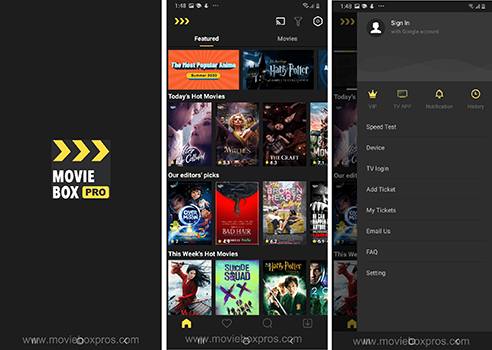
Check the current app and account screens for available playback, subtitle, video quality, and offline download options. Their availability may depend on the build, content and account tier.
Downloading an APK does not establish that every feature is free. We could not verify current free-access limits, VIP benefits, prices or advertising policies. Review the service’s current account information before paying or relying on a particular feature.
Account, Sign-In and Invitation Requirements
APK installation and account activation are separate steps. Android installs the package first; the app may then require sign-in or activation before allowing access. An invitation code is not part of Android’s APK installation process.
The previous guide described Google/Gmail sign-in and the use of an invitation code. We could not independently confirm whether these remain mandatory for every new account. Follow the requirements displayed by the current service:
- If Google sign-in is offered, choose the account associated with your existing access or subscription.
- If an invitation is requested, follow the service’s current invitation instructions. Reinstalling the APK does not resolve an account invitation requirement.
- If email verification is used, check Spam and Junk folders and use the most recent code.
- Check the account’s membership status separately from whether installation succeeded.
When using Google sign-in, enter your Google password only on Google’s genuine authentication page. Do not send passwords or verification codes to invitation sellers or support impersonators.
How to Download and Install MovieBox Pro APK on Android
Use the download page to review the available package information. The link itself does not verify the APK’s publisher, safety, or release number.
- Check your device. Open Settings > About phone/tablet to find your Android version and confirm that the package requirements match.
- Download the appropriate APK. Use a source whose publisher you can verify. Let the download finish before opening it.
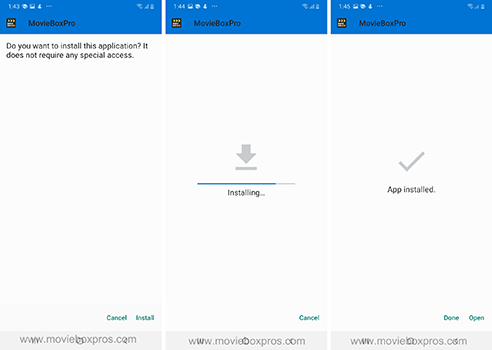
- Open the file. Find it in your browser’s downloads or your file manager’s Downloads folder.
- Allow installation from that source if prompted. On many modern devices, the path is Settings > Apps > Special app access > Install unknown apps. Select the browser or file manager to open the APK, then enable “Allow from this source”. Menu labels vary by manufacturer.
- Return to the APK and tap Install. Normal APK installation does not require rooting your phone. If Android reports an incompatibility or security block, read the message before proceeding.
- Open the installed app. Complete any sign-in, verification or invitation steps shown by the service.
- Turn off Allow from this source afterward. Keep Google Play Protect enabled.
- A standard single APK normally uses Android’s built-in installer; a separate APK installer app is unnecessary. Packages labelled XAPK, APKS or split APK are different formats and require their publisher’s specific installation instructions.
How to Update MovieBox Pro on Android
- Note your installed version and confirm which account you use.
- Check for an update in the app, if it offers that option, or on the verified publisher’s release page.
- Confirm that the new package is intended for your device and is a newer release.
- Download it and install it over the existing app using Android’s normal installer. Avoid uninstalling first.
- Open the app and check that your account and settings are available.
- Disable installation permission for the browser or file manager after the update.
Android checks the signing identity when updating an installed app. A package conflict can indicate a differently signed download, an incompatible package or another installation issue. Obtain the correct update rather than immediately deleting the existing app. Clearing app data or uninstalling may remove settings and offline downloads.
MovieBox Pro Android Troubleshooting
These are general Android troubleshooting steps; they do not establish compatibility or fix a service-side outage.
APK Will Not Install or Shows a Parsing Error
Download the file again in case it is incomplete. Check available storage, Android requirements and the device build. Confirm that the file is an APK rather than a webpage or another package format. If the error mentions an older Android target or an unsupported device, request a compatible release from the publisher.
“App Not Installed” or Package Conflict
Confirm that you are updating the same app from the same verified publisher. A signing mismatch can prevent an update. Do not uninstall until you understand the cause and have accounted for possible loss of local data.
Play Protect Blocks the Package
Read the warning and verify the source. Do not treat switching off Play Protect as the normal installation fix. Google recommends leaving it enabled; a publisher can appeal an incorrect detection.
Sign-In Fails or Keeps Returning to the Login Screen
Check your connection and automatic date/time settings. Restart the app and confirm you selected the correct account. If sign-in opens in a browser, update that browser. An invitation or membership message should be handled through the service’s account support rather than repeated reinstallations.
The App Crashes or Will Not Open
Restart your device, check for app and Android updates, then try Settings > Apps > MovieBox Pro > Force stop. If needed, clear the app’s cache. Menu names vary. Clearing storage/data is a different action and can remove local information, so reserve it for later troubleshooting.
Playback Buffers or a Video Will Not Load
Test your connection in another app. Try another reliable network and, if available, lower the playback quality. If only one title fails, report that title and the error to support. If multiple devices fail at the same time, the issue may be with the service rather than your phone.
Offline Downloads Fail or Stop
First, confirm that downloading is available for the title and account. Check free storage and connection quality. If downloads stop when the app moves into the background, review its battery and background-data restrictions. Uninstalling or clearing app data may remove existing downloads.
When requesting help, include your device model, Android version, app version, exact error, and the steps already tried. Never include passwords or verification codes.
Frequently Asked Questions
What Is the Latest MovieBox Pro Android Version?
We could not verify the latest release number from an accessible developer source during this review. Check the current publisher release information rather than relying on the old “version 5” claim.
Does MovieBox Pro Work on Every Android Phone?
Compatibility is not guaranteed. The APK must meet your device’s Android, processor, and installation policy requirements. Successful installation also does not guarantee successful account activation or playback.
Can I Download MovieBox Pro from Google Play?
We have not verified a Google Play listing for the specific service described here. Apps with similar names may be different products. Verify the publisher and app identity before installing.
Do I Need Root Access or a Separate APK Installer?
Normal installation of a compatible single APK requires neither root access nor a separate installer. Use Android’s built-in installer. Other package formats may require a different procedure.
Is an Invitation Code Required to Install the APK?
Android does not require an invitation code to install an APK. The service may request one afterward for account activation or access. Current invitation rules could not be independently confirmed.
Is a Google Account Required?
Follow the current sign-in screen. The earlier guide described Google/Gmail sign-in, but we could not confirm that it is currently the only supported method.
Is MovieBox Pro Completely Free?
Do not assume that a free APK includes every feature. Current account limits, paid benefits and prices were not verified in this review. Check the service’s displayed terms before subscribing.
Will Updating Delete My Downloads?
An ordinary compatible update is intended to retain app data, but retention cannot be guaranteed for this app. Uninstalling or clearing storage can remove offline downloads and settings.